Supplier Manual
SpeedSMS Platform Data Center Supplier Manual
1. Register Supplier Account
Registration URL (https://speedsms.io/certify_logon)
Please select Supplier identity when registering
2. Create Product
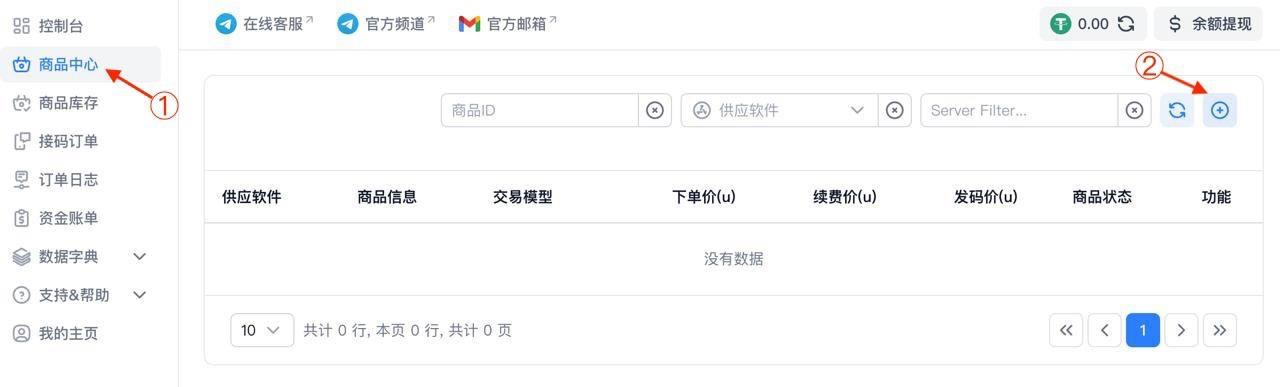
Please choose the appropriate software as it involves decoding rules. You can consult online customer service first
Online Customer Service (https://t.me/JSmihuan01)
Public products (anyone can place orders), Private products (only users who know the product key can place orders)
3. Install Data Center Client
Data Center Client Download URL ( https://speedsms.io/release_downloads/ ), currently only supports Windows systems
4. Connect DangDang Cat Device
By default, simply click the Connect DangDang Cat button
5. Authenticate Data Center Client
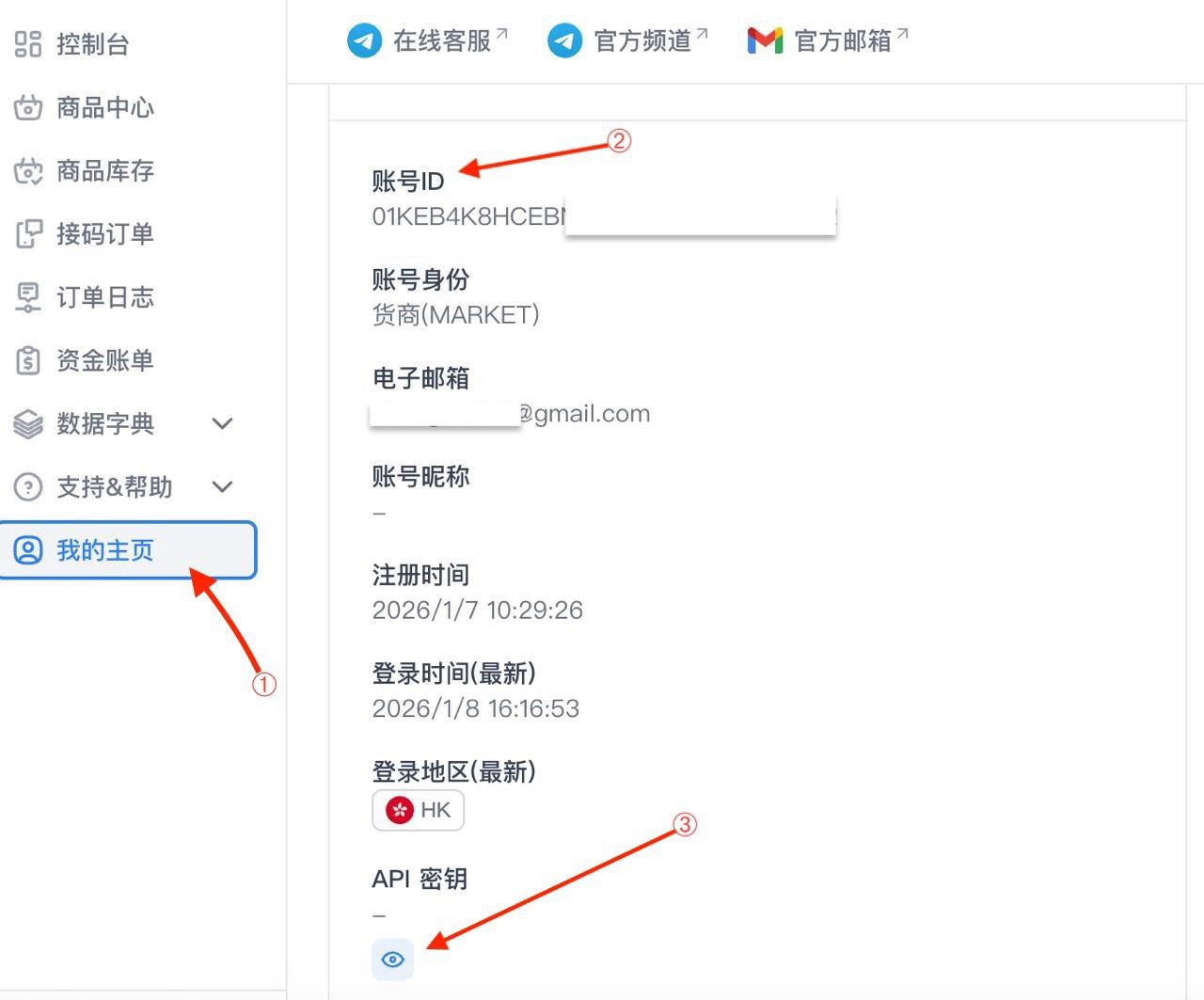
Account ID and Interface Key can be viewed on the platform's personal homepage
Base URL ( https://open.speedsms.io/ )
6. Upload Phone Numbers
Select the product (the product that this batch of numbers can be used to earn money from), then click upload.
7. Click Start (Start Client)
Click the Start Button, after starting you can see the running logs
After successful startup, you can see the activation time of the uploaded numbers in Product Inventory